Alert Management
Use Alert Management to set up alerts with triggers, logic conditions, and escalation notifications.
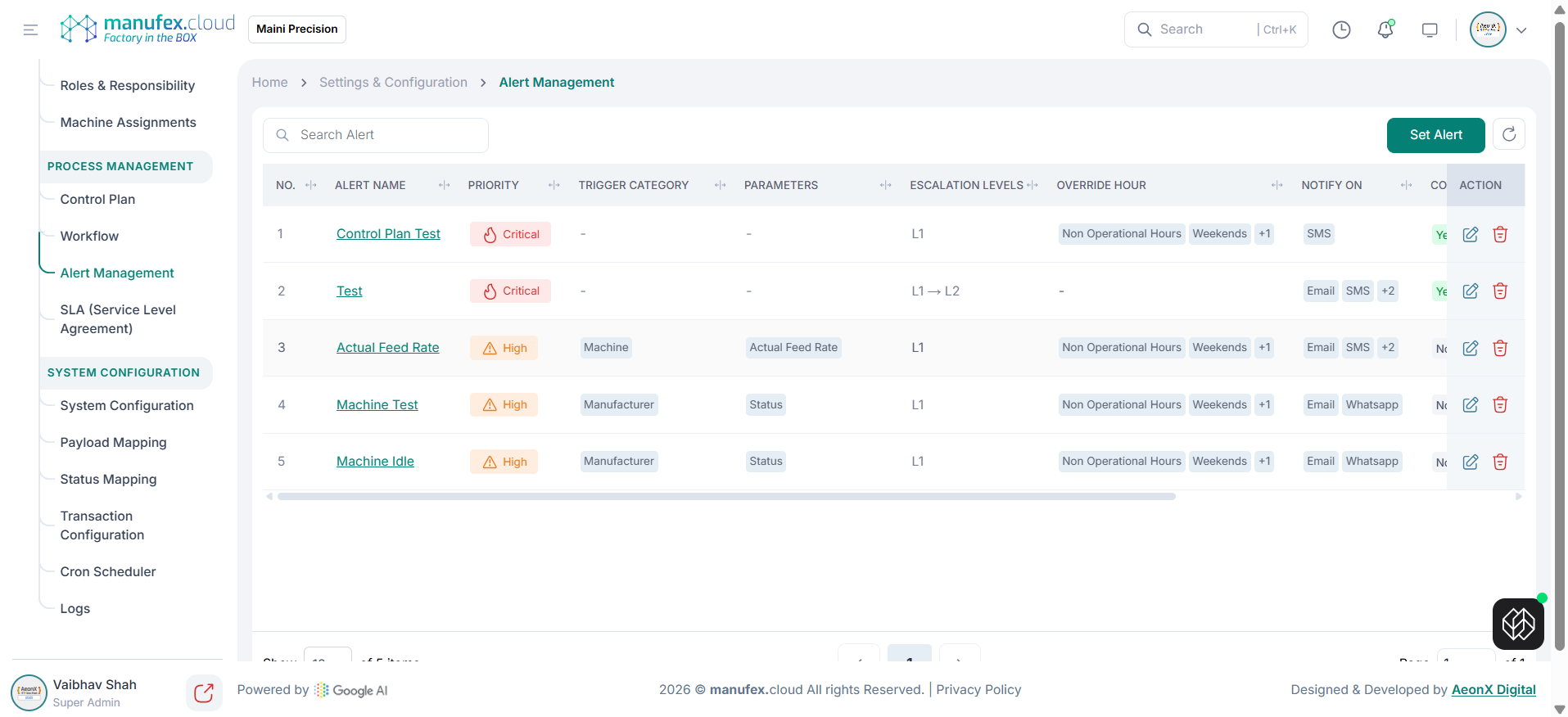
View alerts:
1. In the left sidebar, go to Settings & Config > Process Management > Alert Management.
2. Use Search Alert to find an alert.
Set an alert:
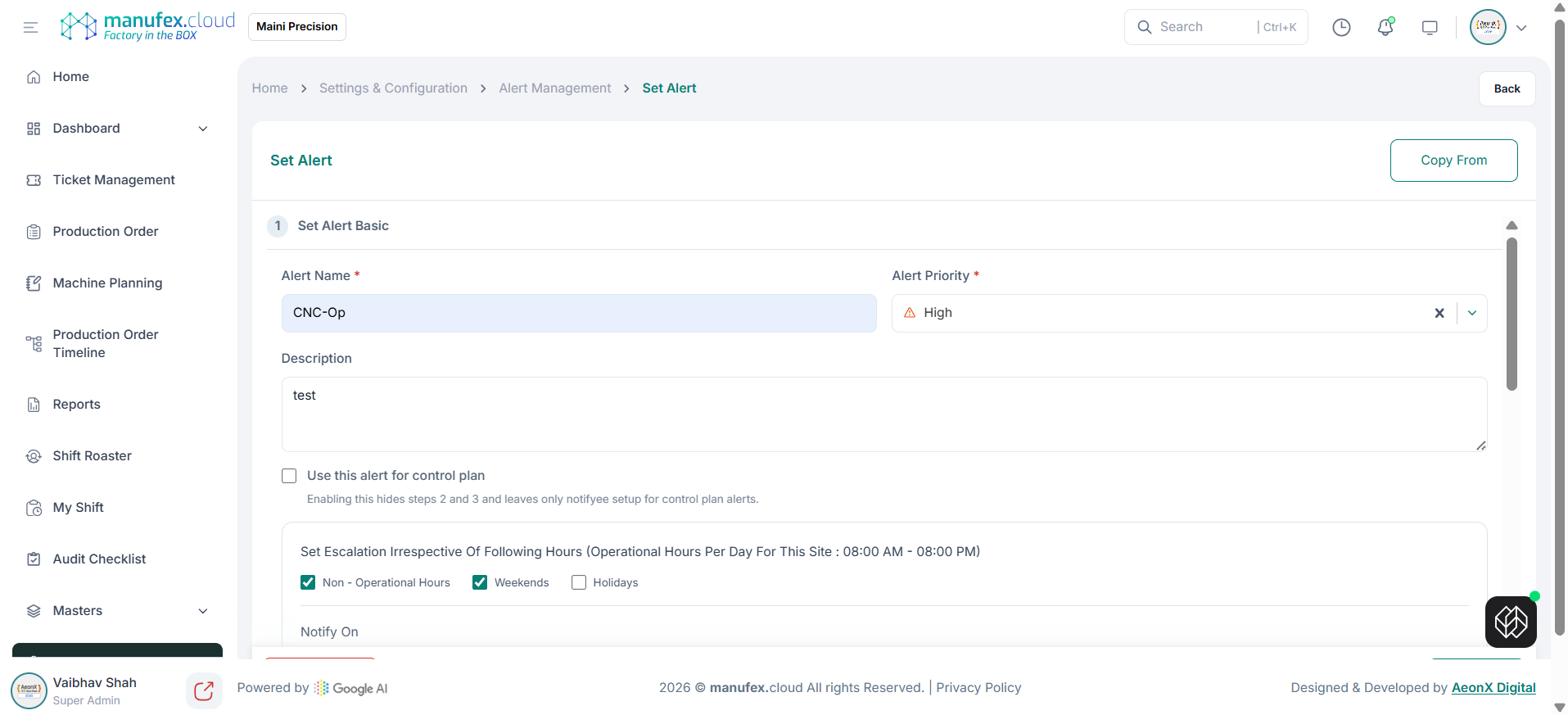
1. Click Set Alert.
2. Step 1 (Set Alert Basic): enter Alert Name, select Alert Priority, add Description, and set bypass hours (Non-Operational Hours/Weekends/Holidays). Use Copy From to copy settings from an existing alert if required.
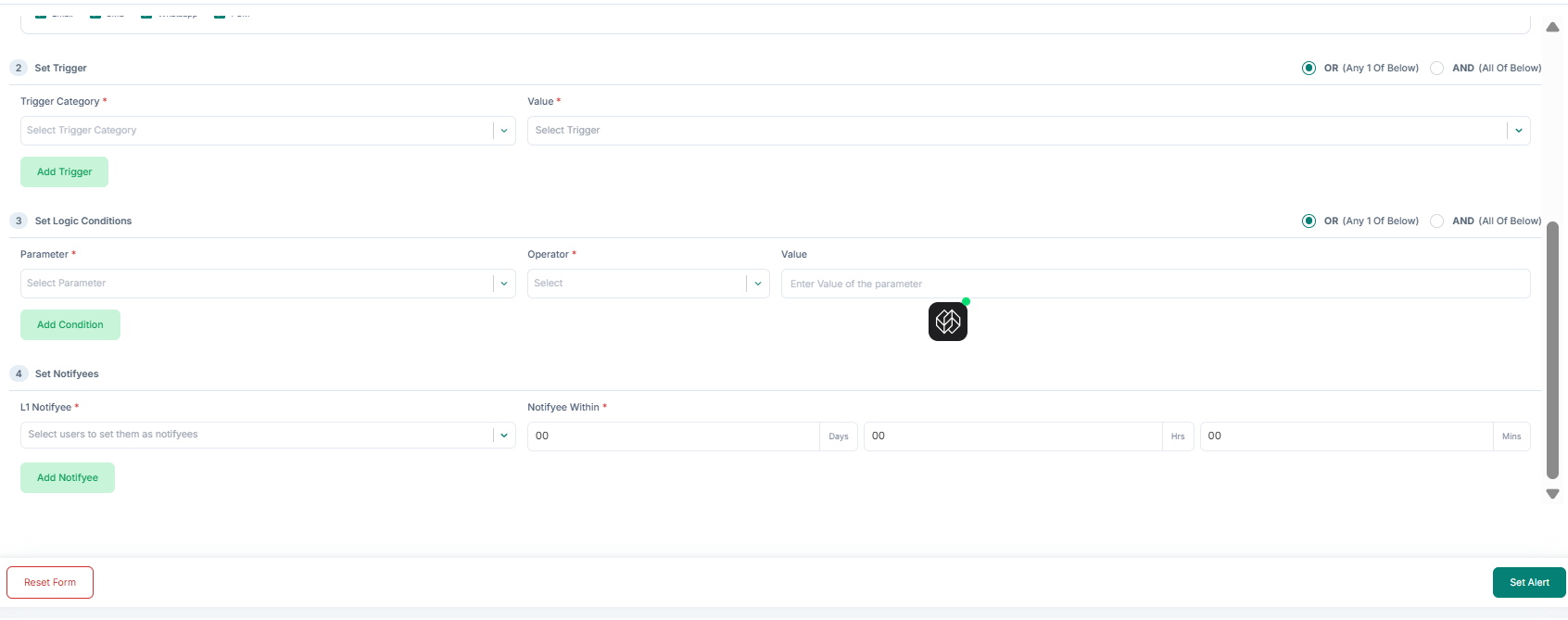
 3. Step 2 (Set Trigger): select Trigger Category and Value, choose OR/AND logic, and click Add Trigger.
4. Step 3 (Set Logic Conditions): select Parameter, Operator, and Value, choose OR/AND logic, and click Add Condition.
5. Step 4 (Set Notifyees): select L1 Notifyee and set Notifyee Within time, then click Add Notifyee.
6. Click Set Alert to save.
3. Step 2 (Set Trigger): select Trigger Category and Value, choose OR/AND logic, and click Add Trigger.
4. Step 3 (Set Logic Conditions): select Parameter, Operator, and Value, choose OR/AND logic, and click Add Condition.
5. Step 4 (Set Notifyees): select L1 Notifyee and set Notifyee Within time, then click Add Notifyee.
6. Click Set Alert to save.
View alert details:
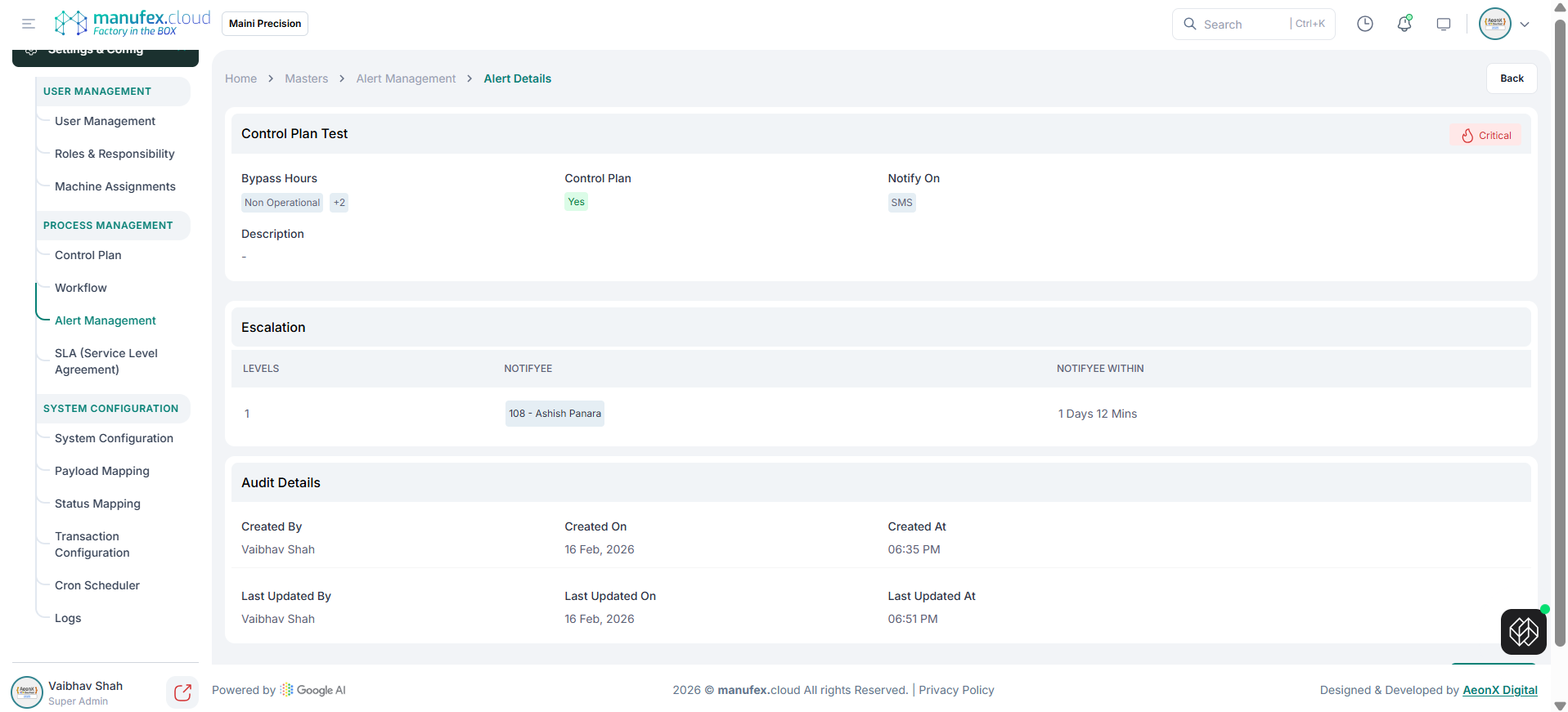
1. Open an alert from the list.
2. Review alert details, escalation levels, and audit details.
Edit an alert: 1. Click Edit in the Action column. 2. Update settings and click Set Alert to save.
Delete an alert: 1. Click Delete in the Action column. 2. Confirm Delete Permanently.