SLA (Service Level Agreement)
Use SLA (Service Level Agreement) to define escalation rules and response timelines for ticket handling.
Create an SLA:
1. In the left sidebar, go to Settings & Config > Process Management > SLA (Service Level Agreement).
2. Click Create SLA.
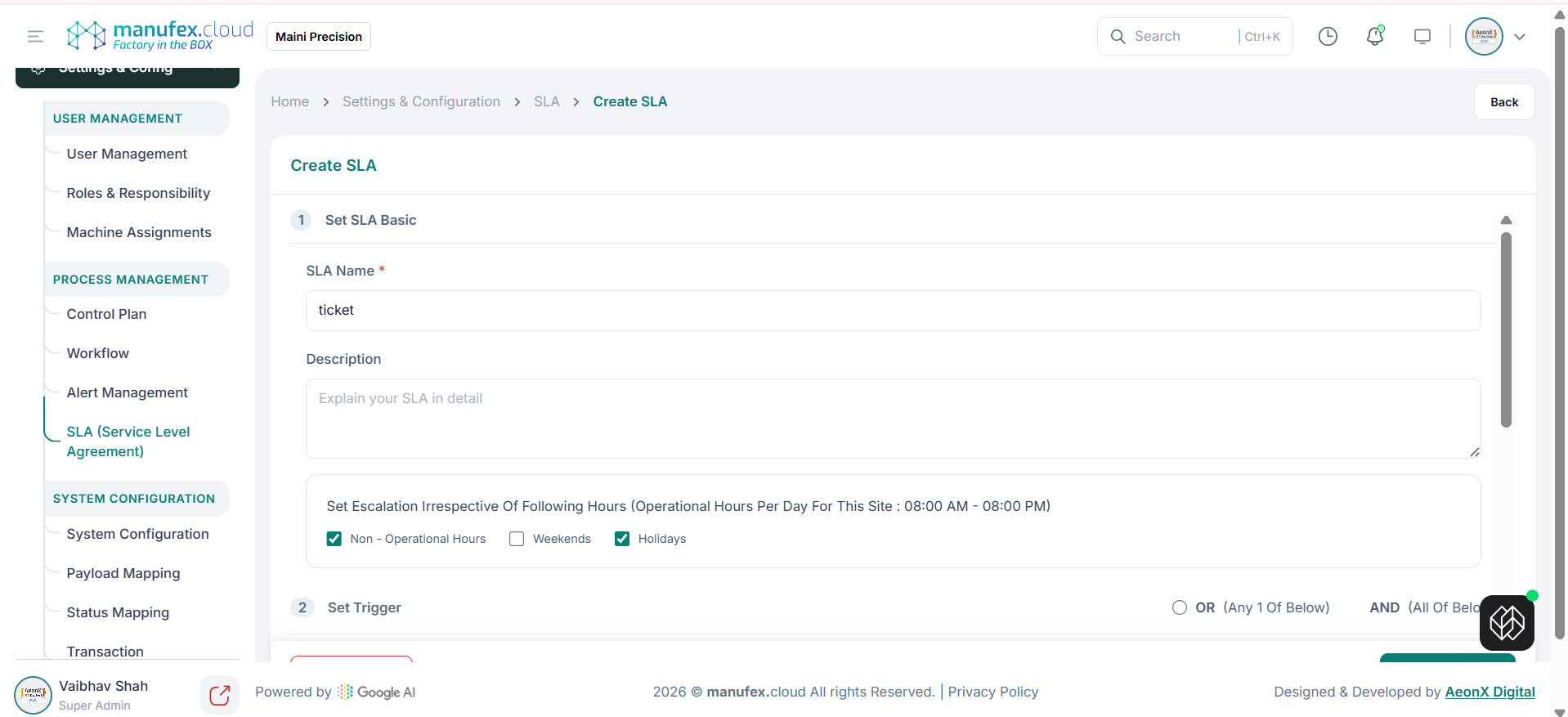
3. Step 1 (Set SLA Basic): enter SLA Name and Description, then set bypass hours (Non-Operational Hours/Weekends/Holidays) if required.
 4. Step 2 (Set Trigger): choose OR/AND logic, select Trigger Category and Set Trigger, then click Add Trigger.
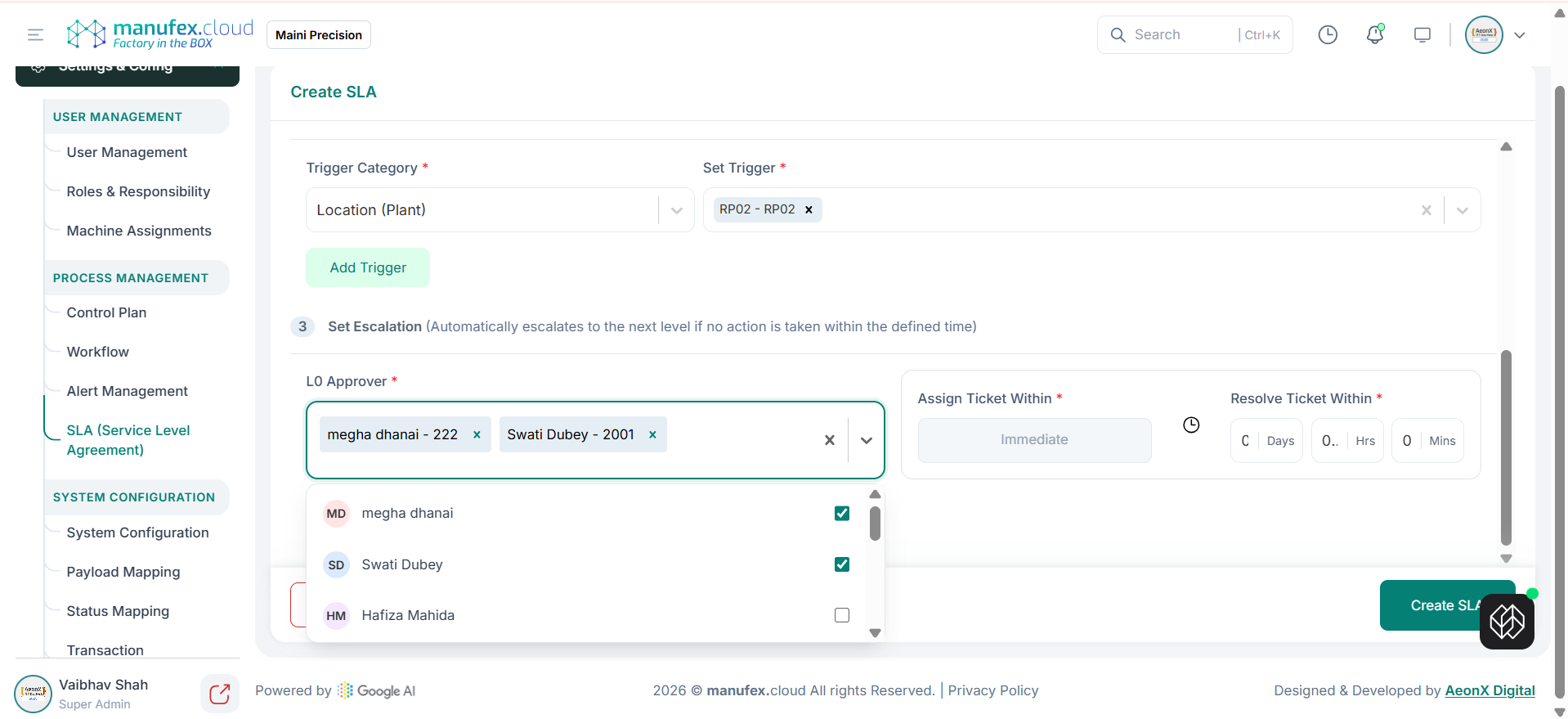
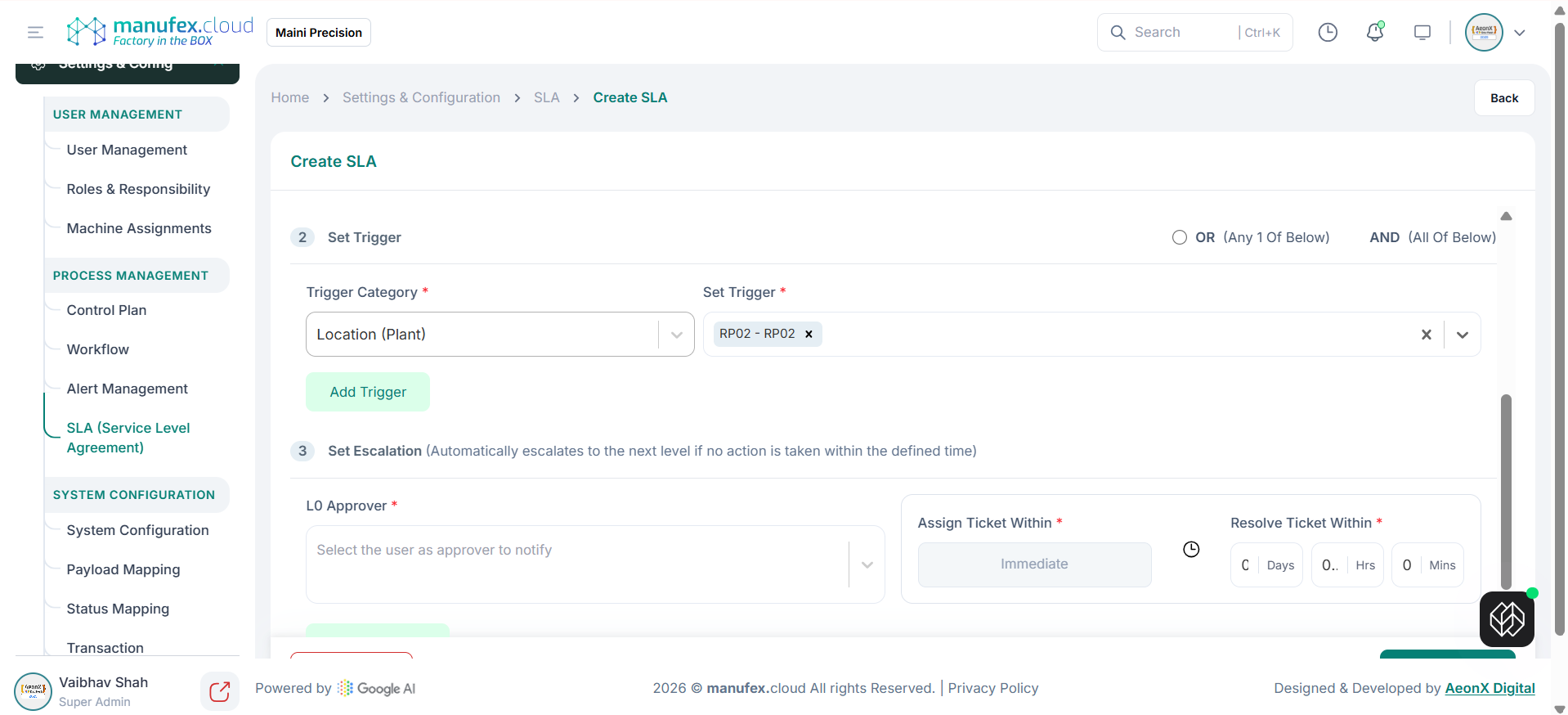 5. Step 3 (Set Escalation): select L0 Approver(s), set Assign Ticket Within and Resolve Ticket Within timelines, then click Create SLA.
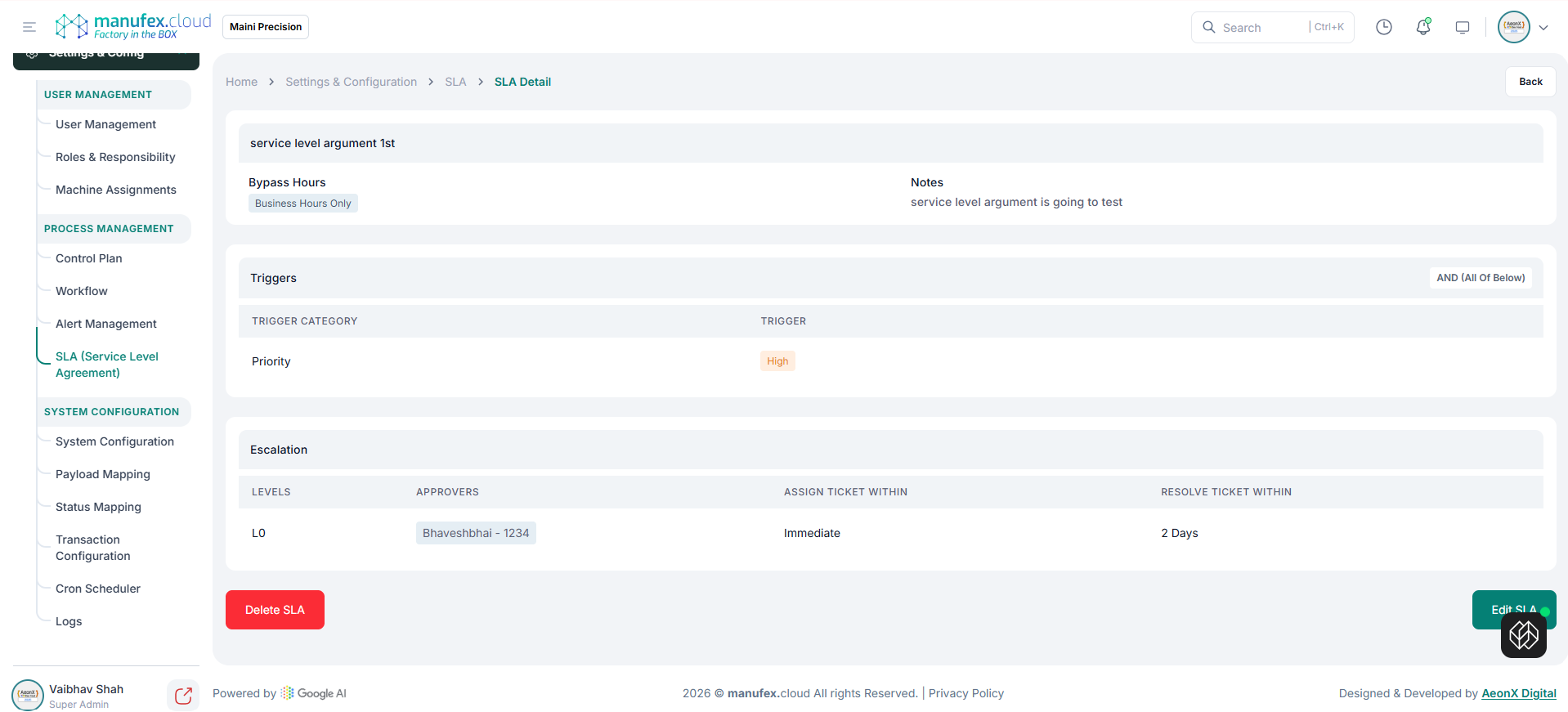
View SLA details:
1. Open an SLA from the list.
2. Review bypass hours, triggers, and escalation timelines.
Edit an SLA: 1. Open the SLA and click Edit SLA. 2. Update triggers or escalation timelines. 3. Click Update/Save.
Delete an SLA: 1. Open the SLA and click Delete SLA. 2. Confirm Delete Permanently.