Roles & Responsibility
Use Roles & Responsibility to create roles and manage access permissions for users.
View roles:
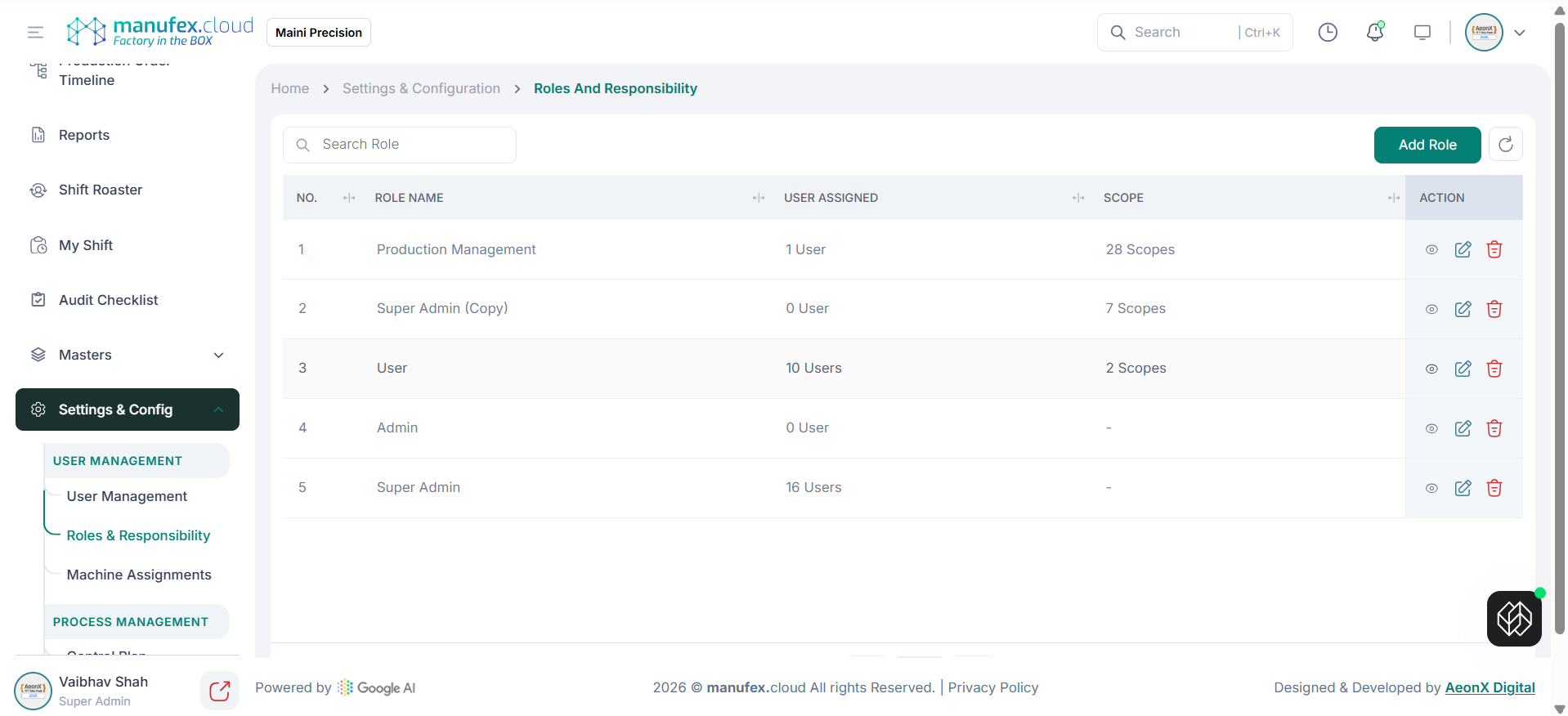
1. In the left sidebar, go to Settings & Config > User Management > Roles & Responsibility.
2. Use Search Role to find a role.
Add a role:
1. Click Add Role.
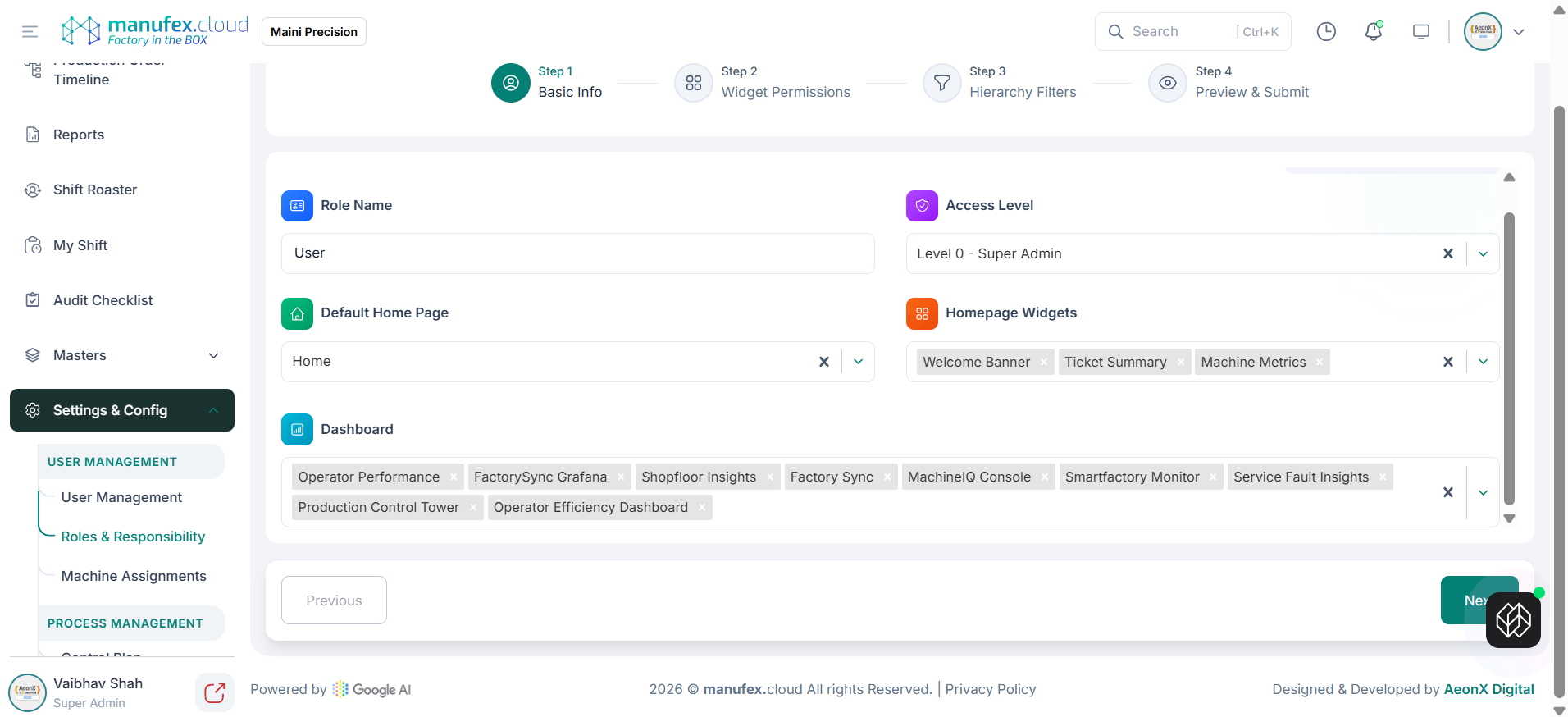
2. Step 1 (Basic Info): enter Role Name and Access Level, then set the default home page and widgets/dashboards.
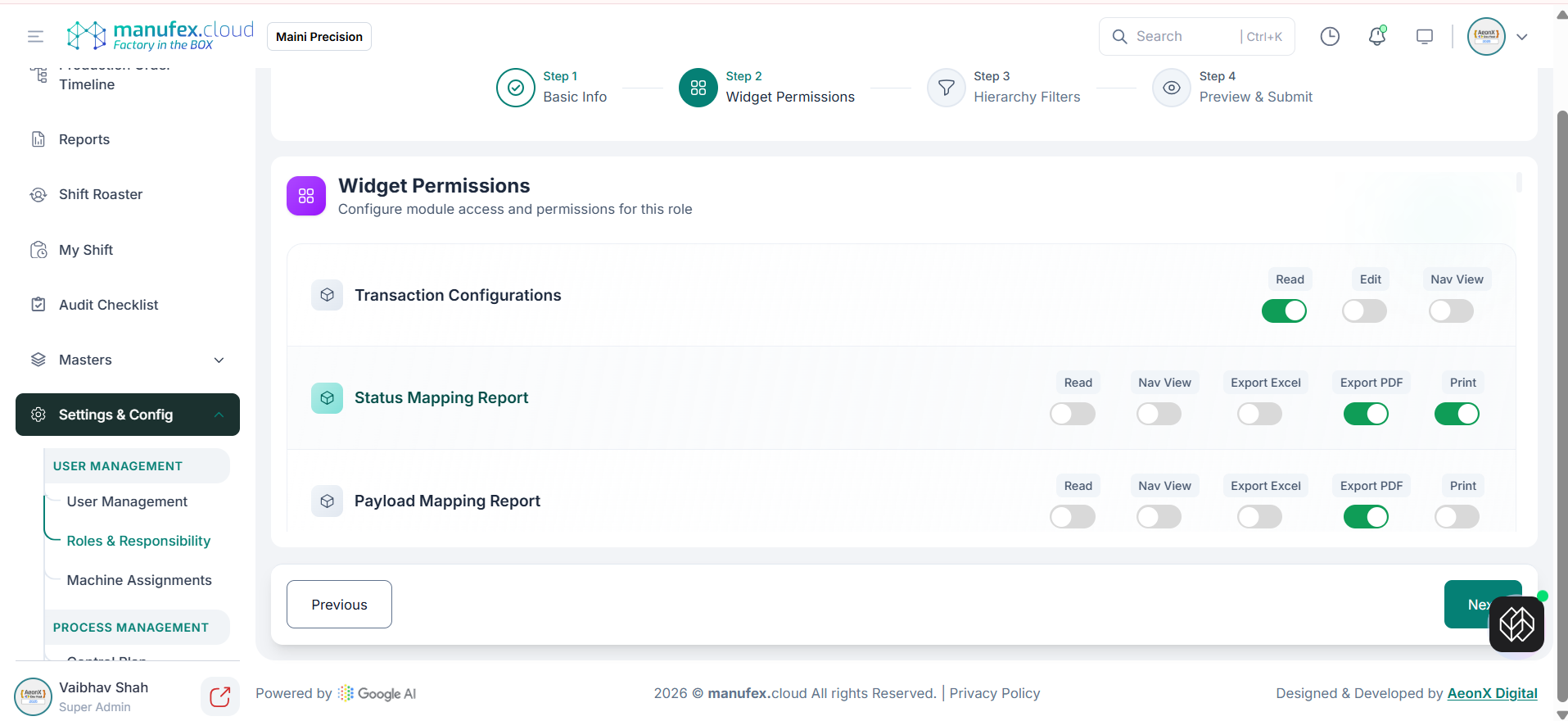
 3. Step 2 (Widget Permissions): enable permissions for modules and reports as required.
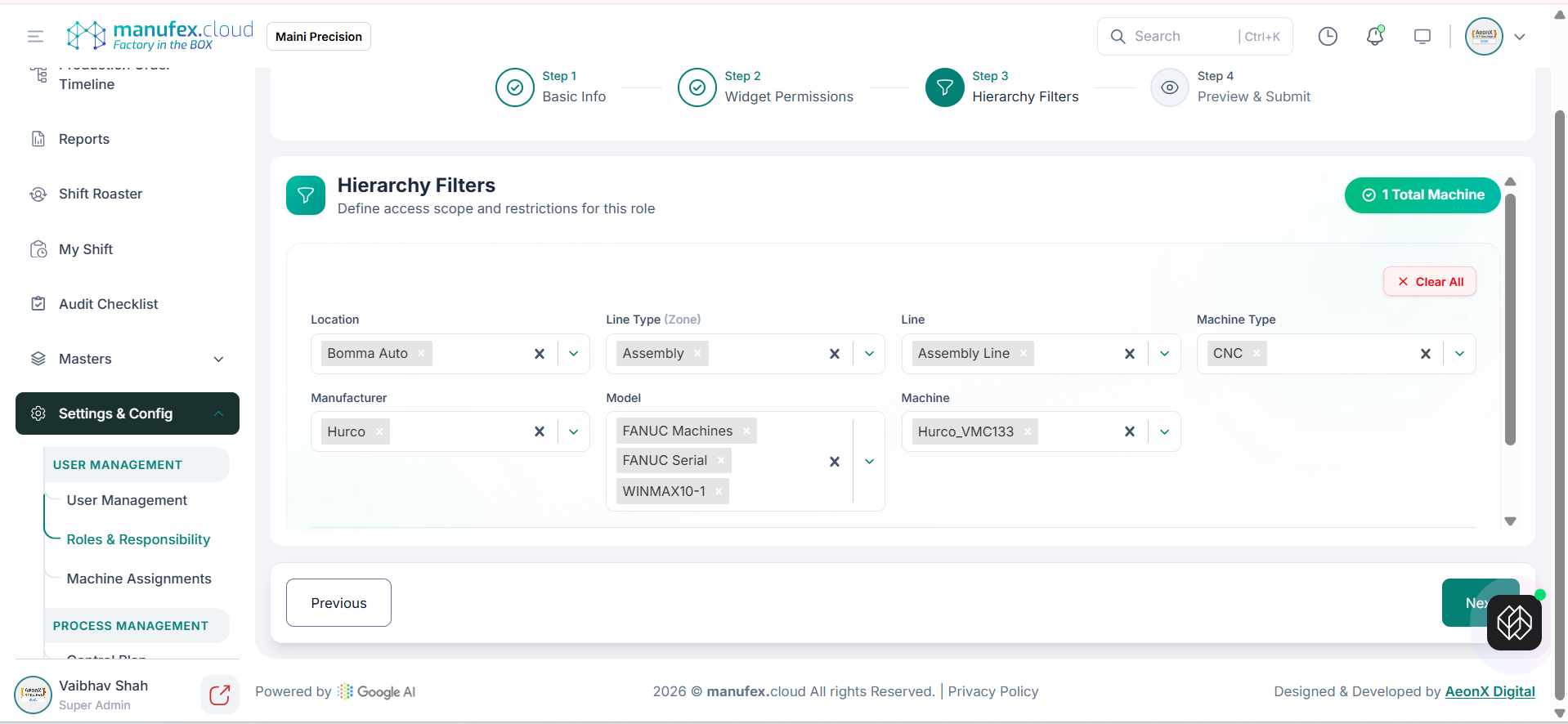
 4. Step 3 (Hierarchy Filters): define access scope and restrictions.
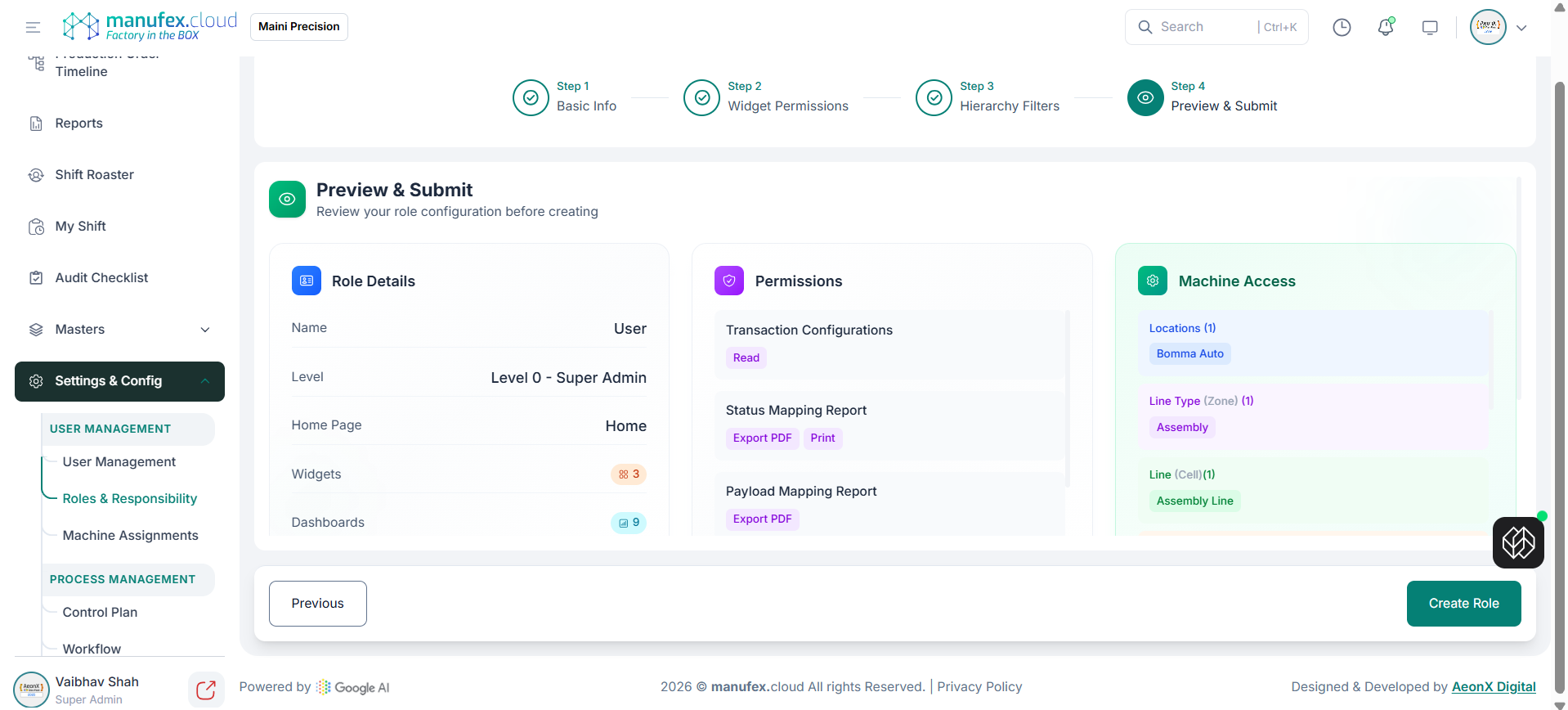
 5. Step 4 (Preview & Submit): review and click Create Role.
Edit a role: 1. Click Edit in the Action column. 2. Update role details and permissions. 3. Click Update/Create to save.
Delete a role: 1. Click Delete in the Action column. 2. Confirm Delete Permanently.