Ticket Management
Dashboard
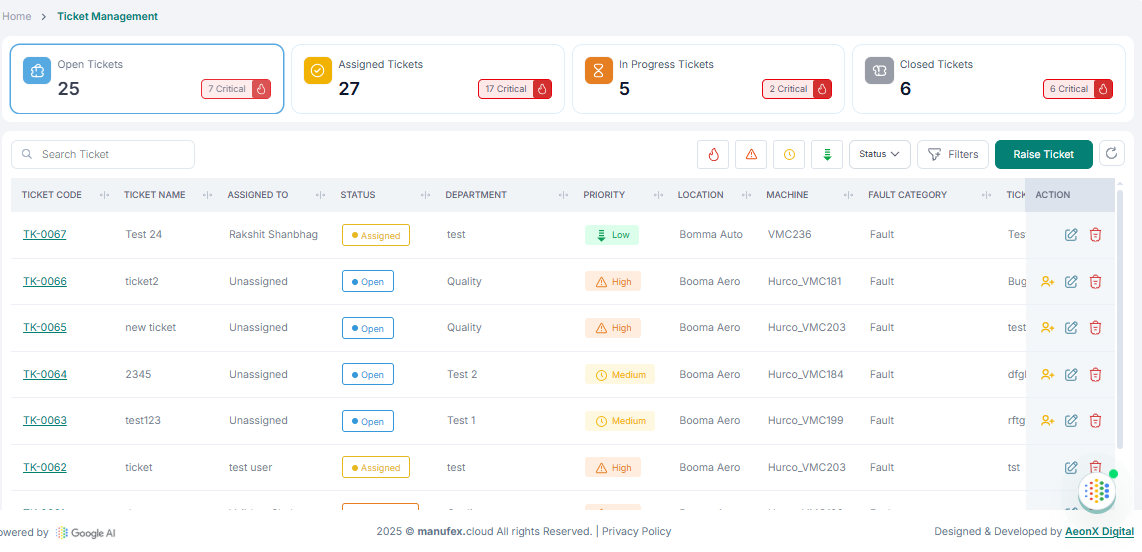
This dashboard displays counts of Open, Assigned, In-Progress, and Closed tickets, along with all other information related to each ticket.
Raise Ticket
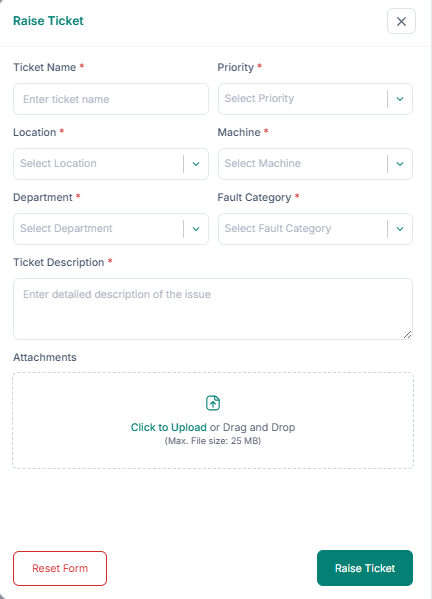
- Click Raise Ticket.
- Fill in Ticket Name, Priority, Location, Machine, Department, Fault Category, Description, and Attachments.
- Click Raise Ticket to submit.
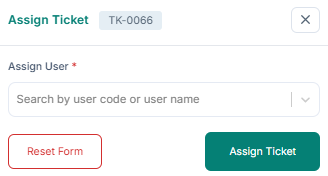
Assign Ticket
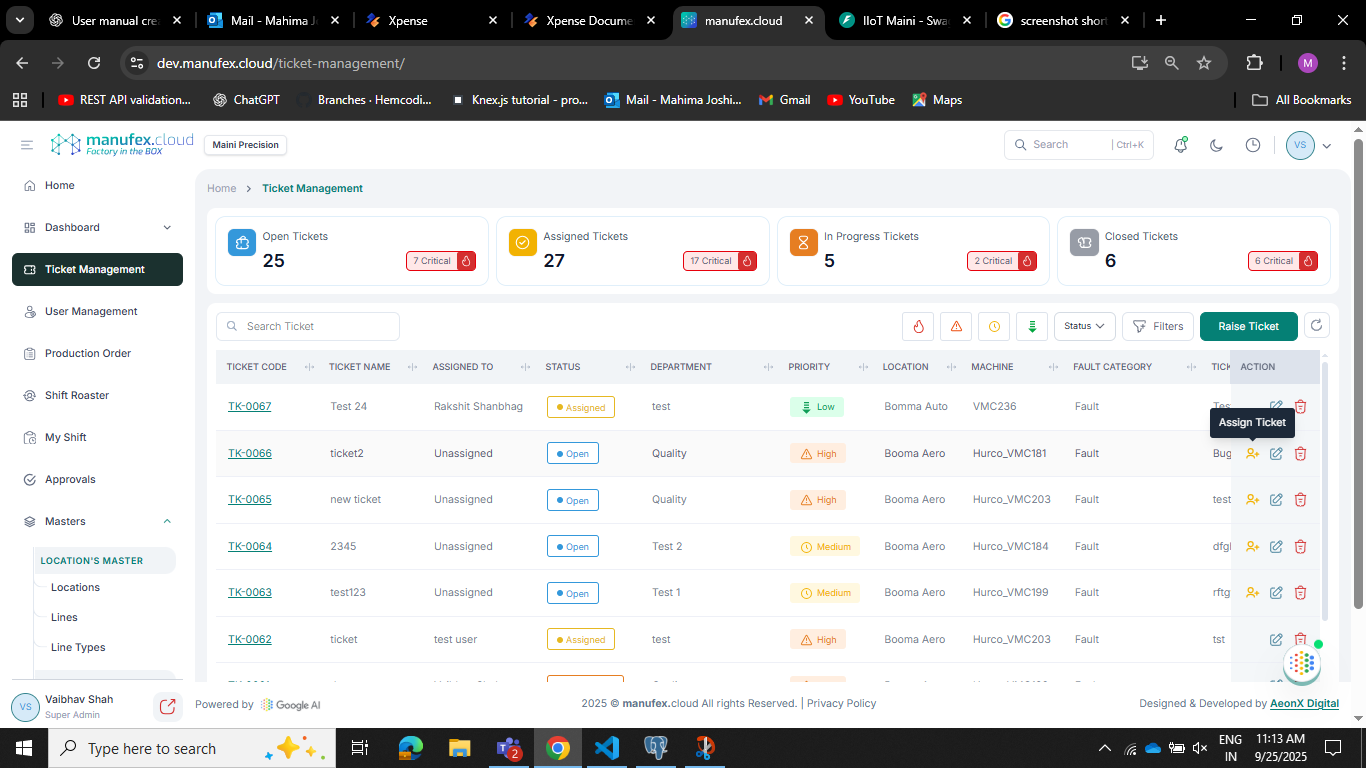
- Click Assign Ticket in the Action column for the ticket.
Status Updates
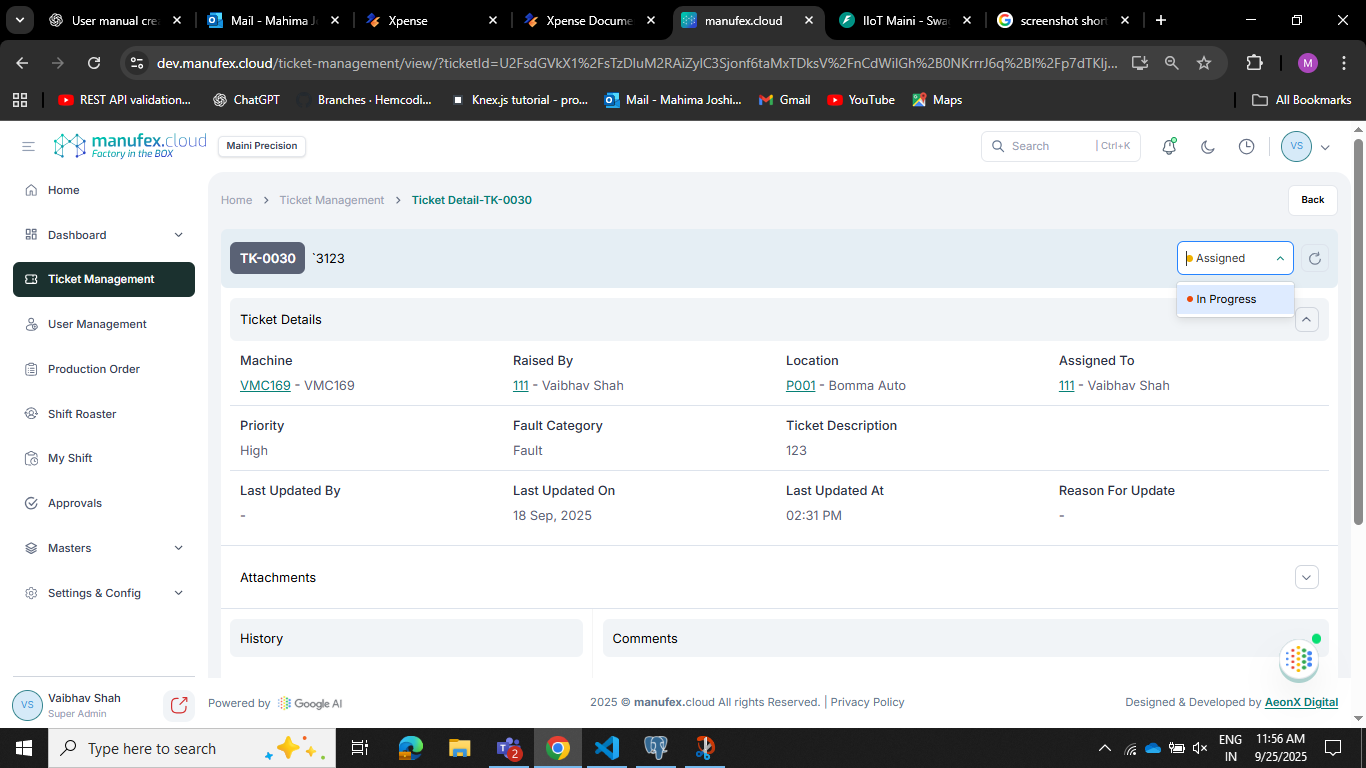
- Open the ticket.
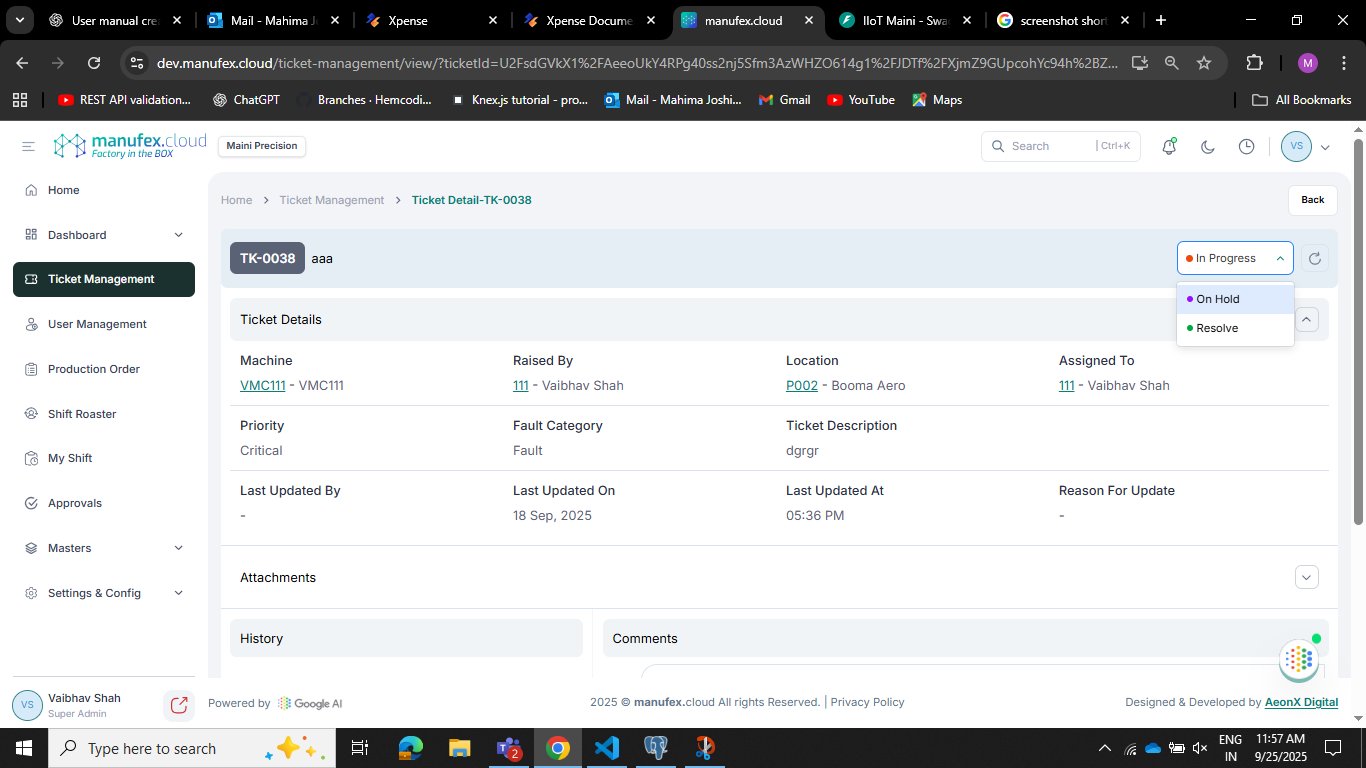
- In the Assigned dropdown on the right side, select In Progress.
- Update status to Resolved or On Hold as needed.
Resolved Ticket
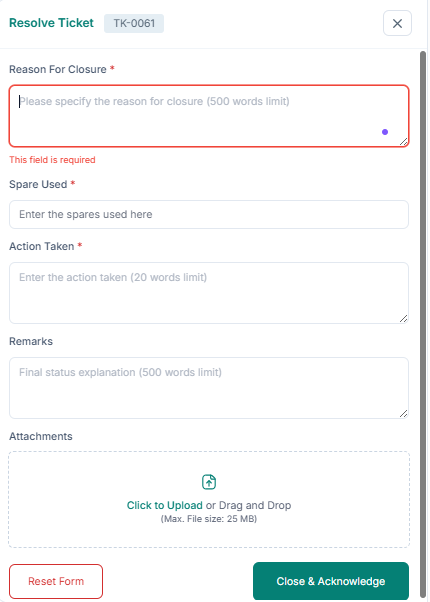
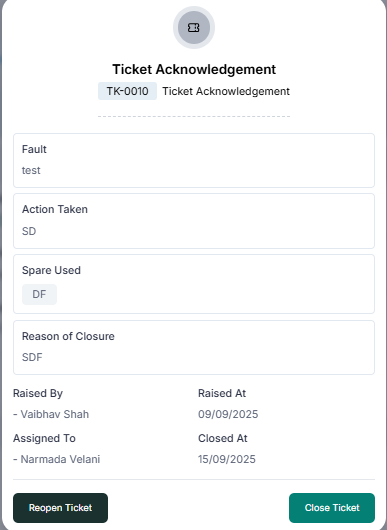
- Provide Reason for Closure, Spare Used, Action Taken, Remarks, and Attachments.
- Click Close and Acknowledge.
Acknowledge Ticket
- The user who raised the ticket verifies the details.
- Click Close Ticket to finish.
- If needed, click Reopen Ticket to make it active again.
View Ticket Details
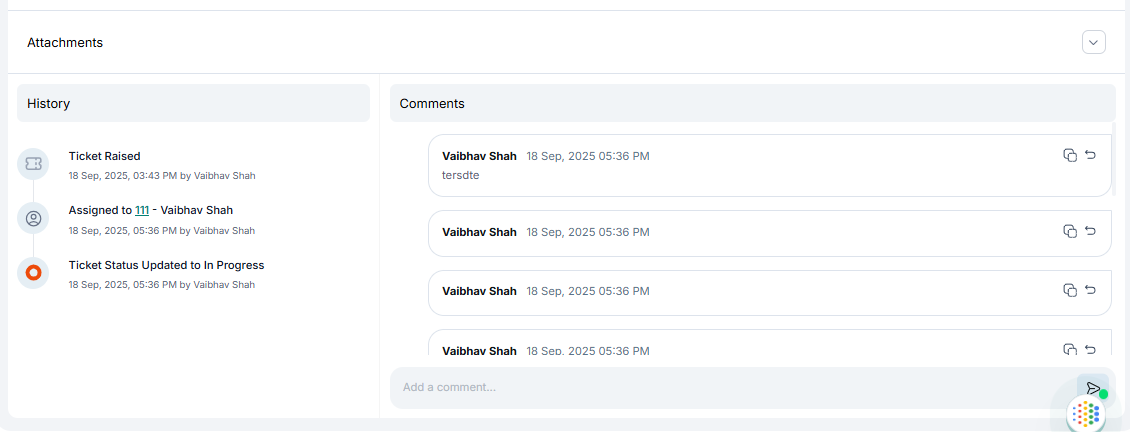
- Click a ticket to view details, attachments, and history.
- Add comments and reply to existing comments.